Setting up the module
For the setup you need a valid module license as well as a free TWINT Portal account:
https://portal.twint.ch
The easiest way to set up the integration is by using the setup wizard in your account at mamedev.ch under “Applications > TWINT > Set up TWINT for PrestaShop”.
Alternatively, you can follow the step-by-step guide below.
Step 1: Add a Store in the TWINT portal
In this step, a store must be added in the TWINT Portal and linked with your account at mamedev.ch.
Log in to your TWINT Portal account and go to “Settings”. If there is no bank account yet under “Accounts”, you must first add a new one. Your payouts will be transferred to this account.
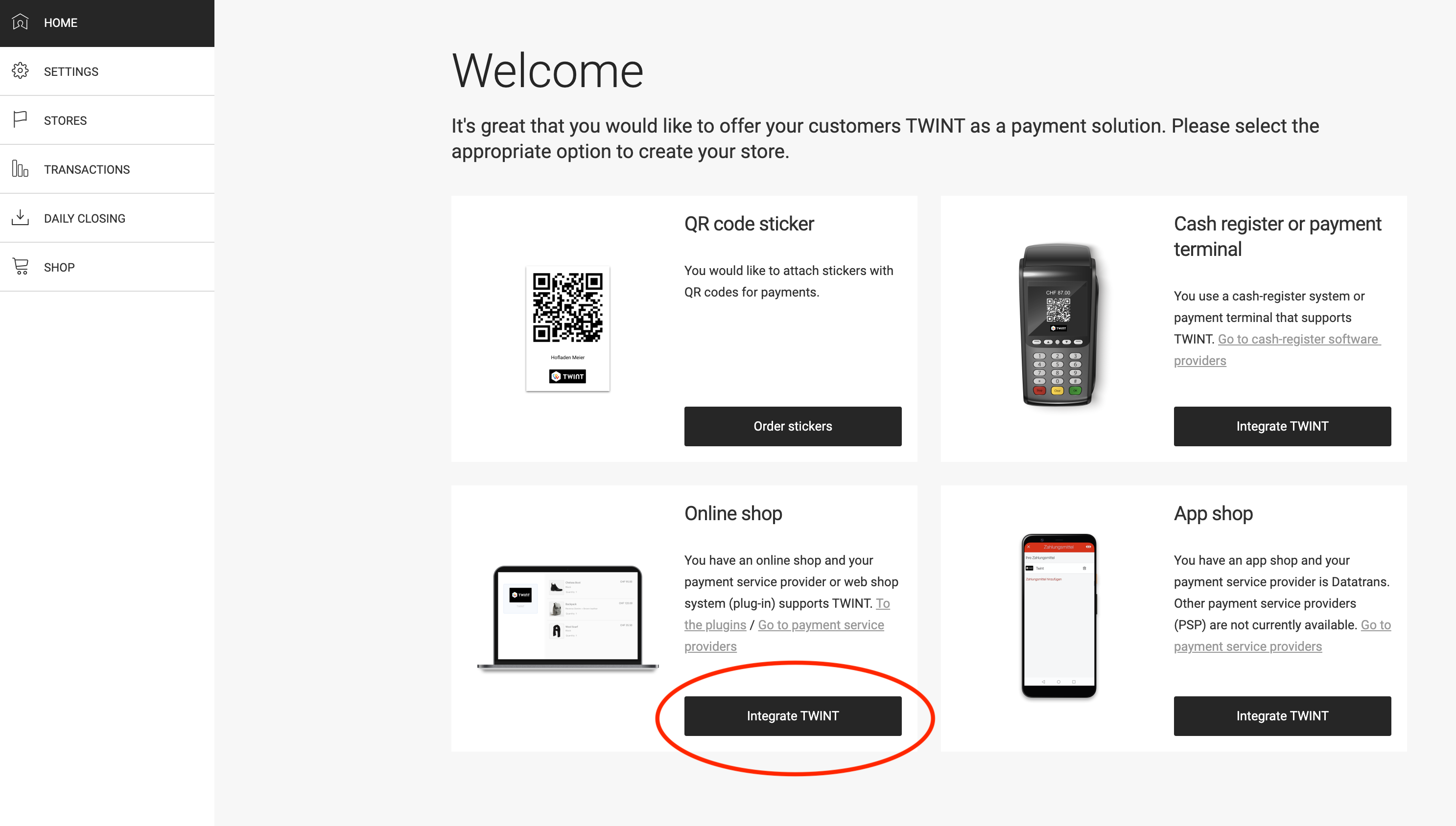
Go to “HOME” and click “Integrate TWINT” under “Online Shop”.
In the next step, select the solution “Standard”.

On the following screen (Integration), make sure to select “PSP” and “mame”.
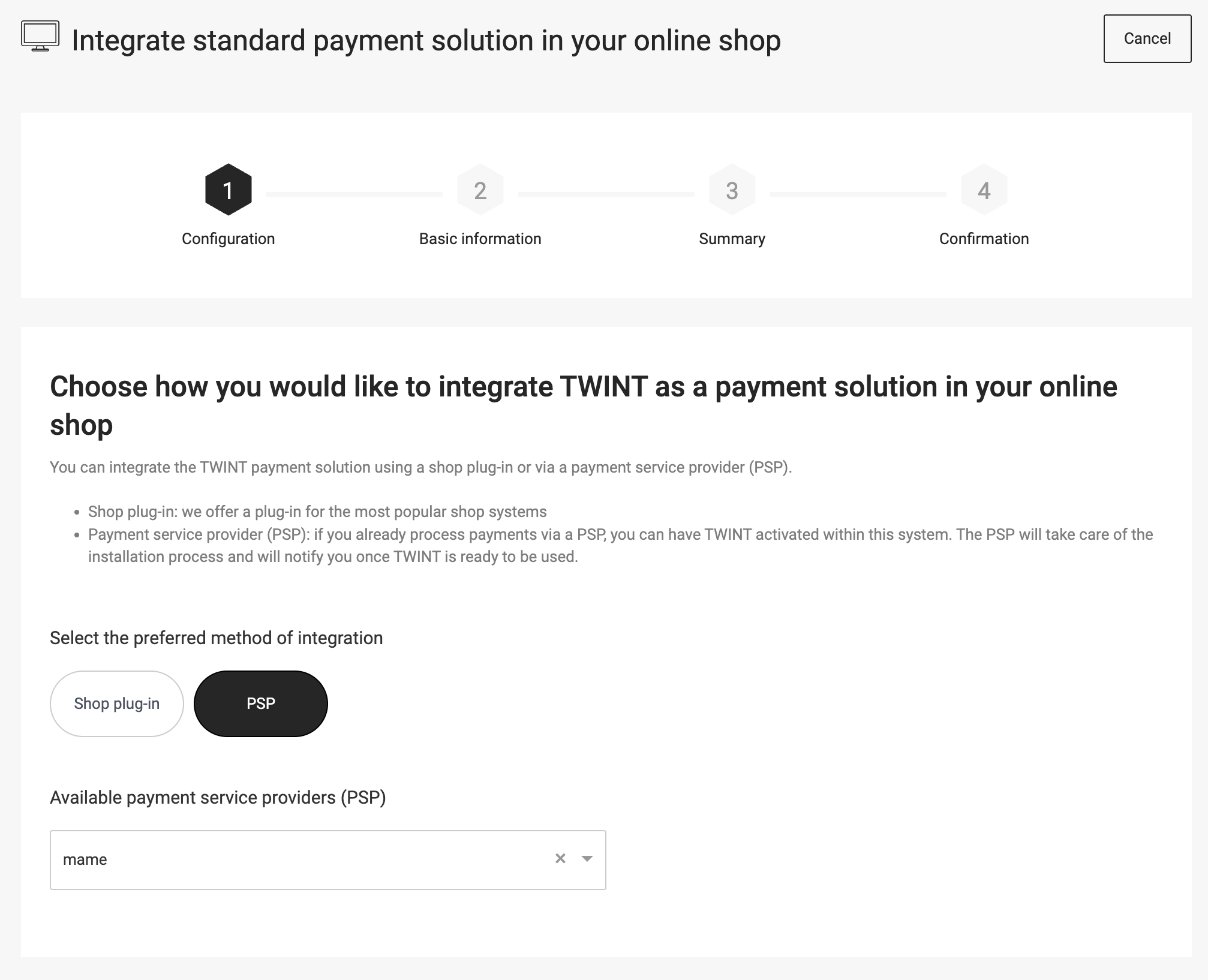
On the next screen (Basic Information), provide all the required information about your online shop and click “Next”.
After the store is added, the Store UUID is displayed. The Store UUID is needed in the next steps.
Step 2: Add the Store at mamedev.ch
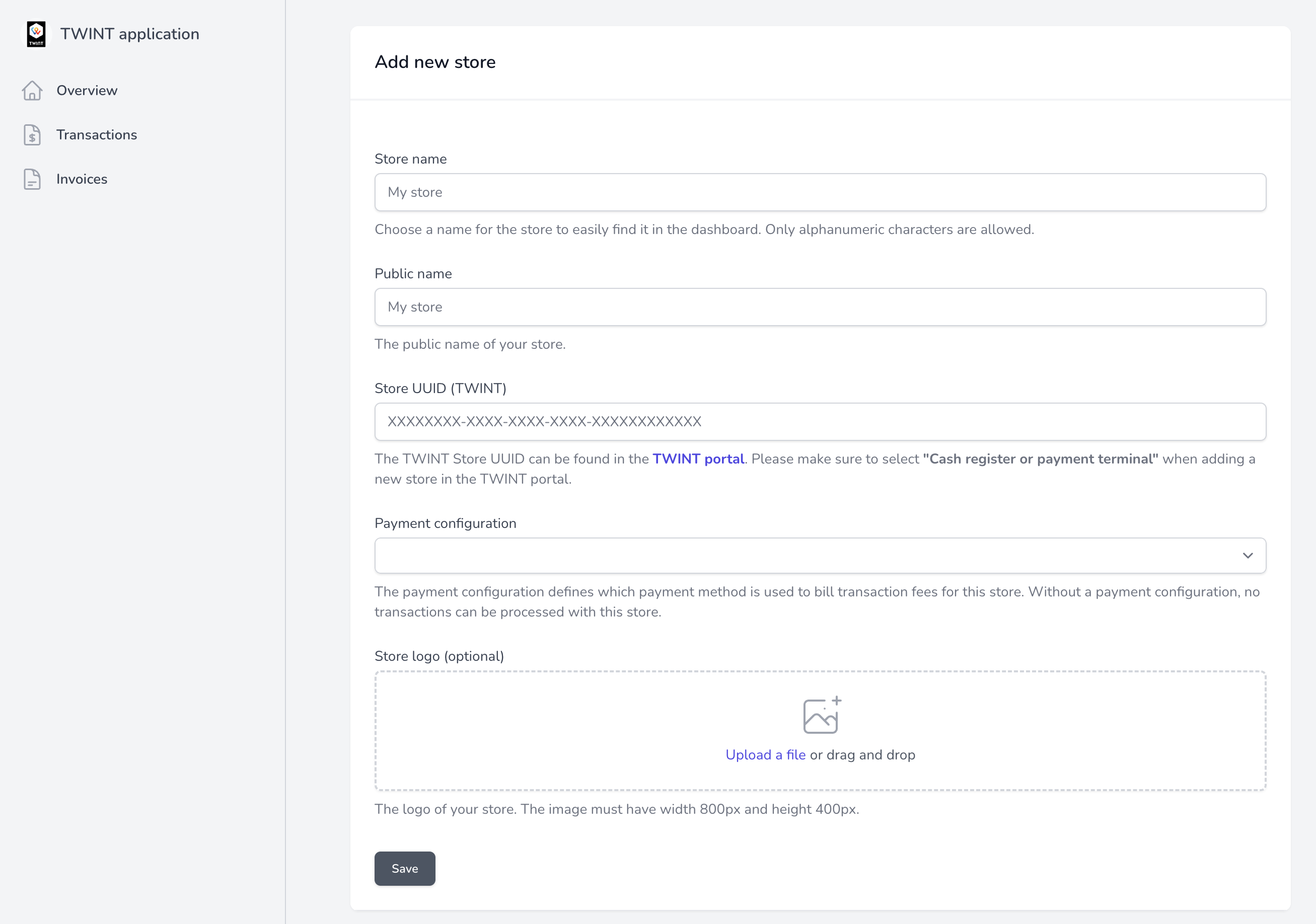
Log in to your account at mamedev.ch and go to “Applications > TWINT”. Under “Stores”, click “Add Store”.
A form with the following fields will open:
- Store Name: Enter any name for identification at mamedev.ch and in the WP backend. This name will not be shown to customers.
- Public Name: The name of the store as it should be displayed to customers.
- Store UUID (TWINT): Paste the Store UUID of the store you just created in the TWINT Portal (see Step 1).
- Store Logo (optional): A logo with the size 800px x 400px. This field is optional.
Step 3: Add a payment configuration
For the billing of the transaction fees, a payment configuration must be added in your account at mamedev.ch.
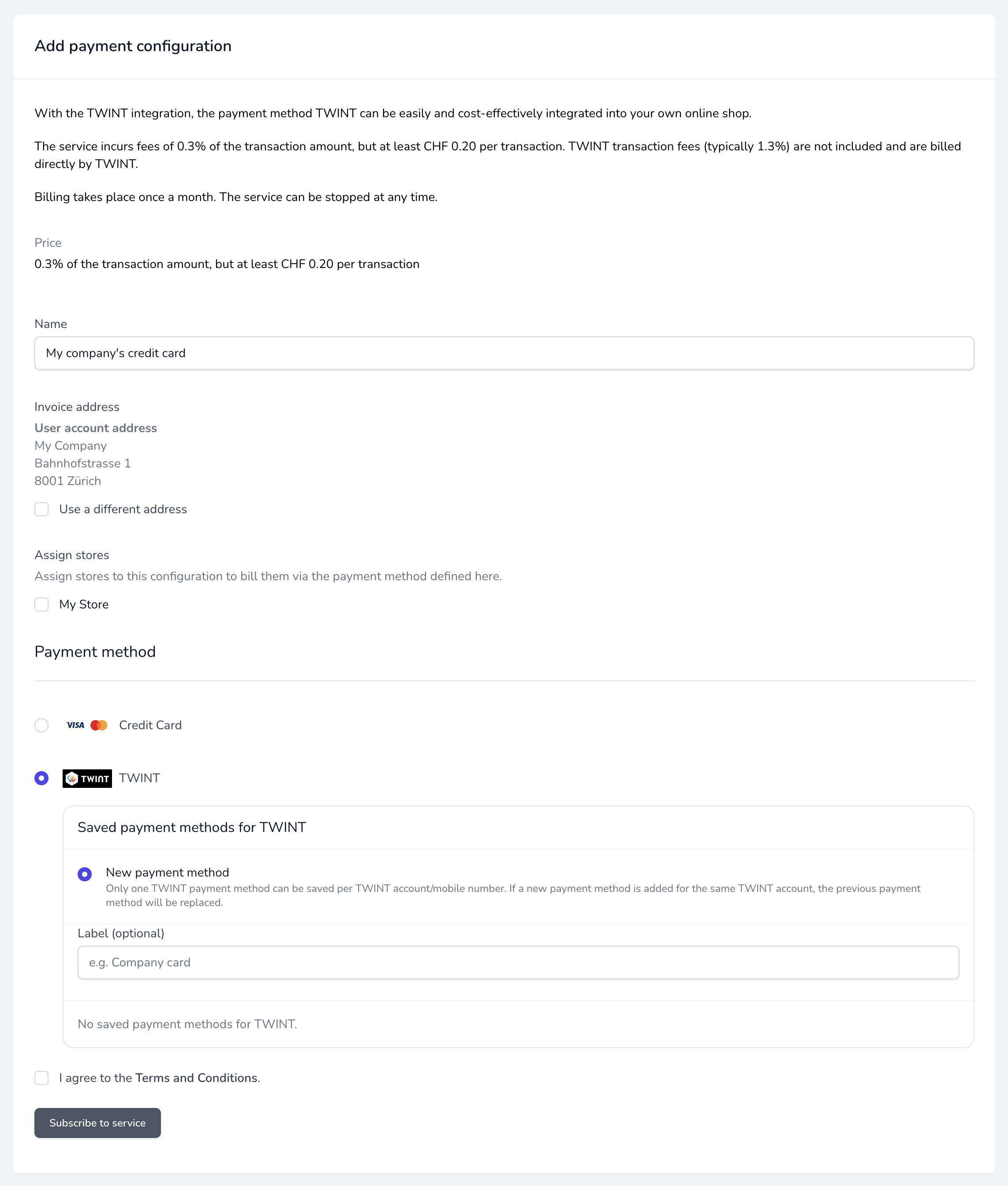
Go to “Applications > TWINT” and add a new payment configuration using the button “Add payment configuration”.
Select the store you just created to use this payment configuration for settling the transaction fees of the store.
Add a payment method and activate the payment configuration.
Step 4: API credentials
Go to “Settings > API Settings”. On this page, you can generate a new webhook key by clicking the “Generate New Key” button if none exists yet. This will later be required for the setup in PrestaShop.
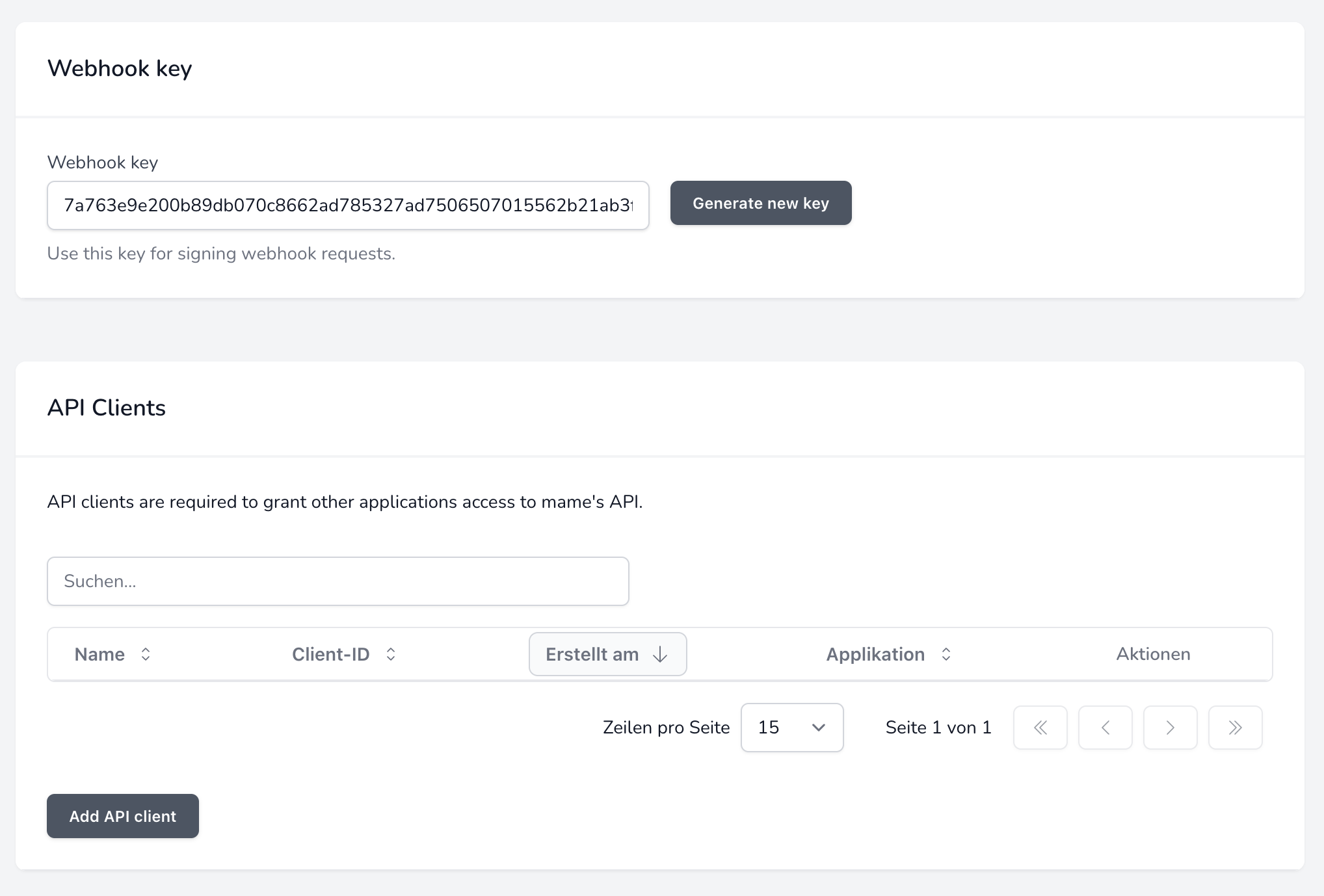
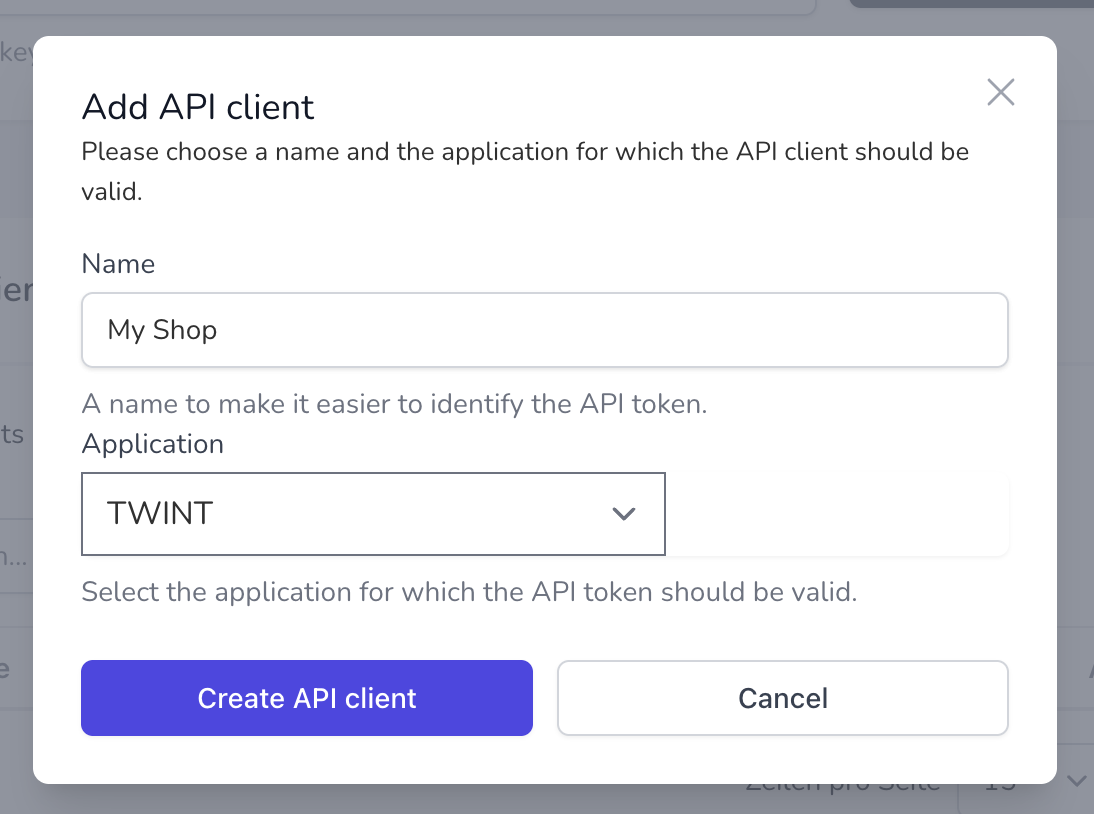
On the same page under “Api Clients > Add Api client” you can generate a new client ID and client secret. Enter any name (e.g. the name of your shop) and select “TWINT” in the selection field.
Important: The Client Secret is displayed only once after creation. Copy the entire Client Secret, as it will later be required for the setup in PrestaShop.
Note: An API client is required, not an API token.
Step 5: Settings in PrestaShop
Download the module from your account at mamedev.ch under “Downloads” and install it in the PrestaShop backend of your website under “Modules > Module Manager > Upload a module”.
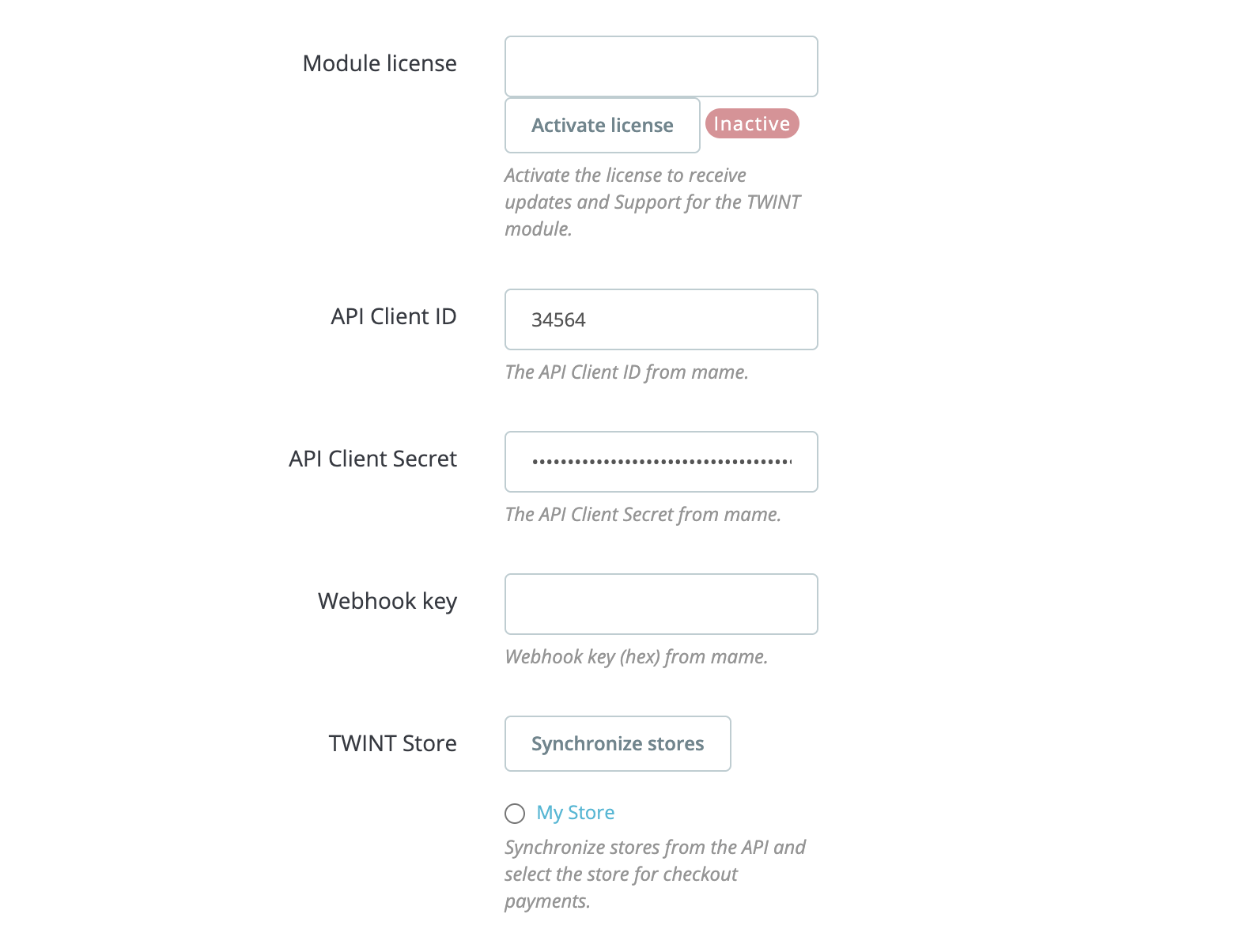
Then, go to “Modules > Module Manager > TWINT > Settings”. Fill in the following fields on this page:
- Module License: Enter the module license you received after purchase. You can find all your licenses in your account at mamedev.ch under “Licenses”.
- API Client ID: Enter the Client ID from Step 4 here.
- API Client Secret: Enter the Client Secret from Step 4 here.
- Webhook Key: Enter the Webhook Key from Step 4 here.
Then click “Save”. If the API connection is successful, you can then retrieve the stores from your mamedev.ch account using the “Synchronize stores” button. Select the store from Step 2 and click “Save” again.
Setup completed
It is recommended to make a test payment immediately. You can refund it directly from the order management page in the PrestaShop backend.